

Digital Experience Monitoring (DEX) provides visibility into device, network, and application performance across your Cloudflare SASE deployment. The latest release of the Cloudflare One agent (v2025.1.861) now includes device endpoint monitoring capabilities to provide deeper visibility into end-user device performance which can be analyzed directly from the dashboard.
Device health metrics are now automatically collected, allowing administrators to:
- View the last network a user was connected to
- Monitor CPU and RAM utilization on devices
- Identify resource-intensive processes running on endpoints

This feature complements existing DEX features like synthetic application monitoring and network path visualization, creating a comprehensive troubleshooting workflow that connects application performance with device state.
For more details refer to our DEX documentation.
Hyperdrive now pools database connections in one or more regions close to your database. This means that your uncached queries and new database connections have up to 90% less latency as measured from connection pools.
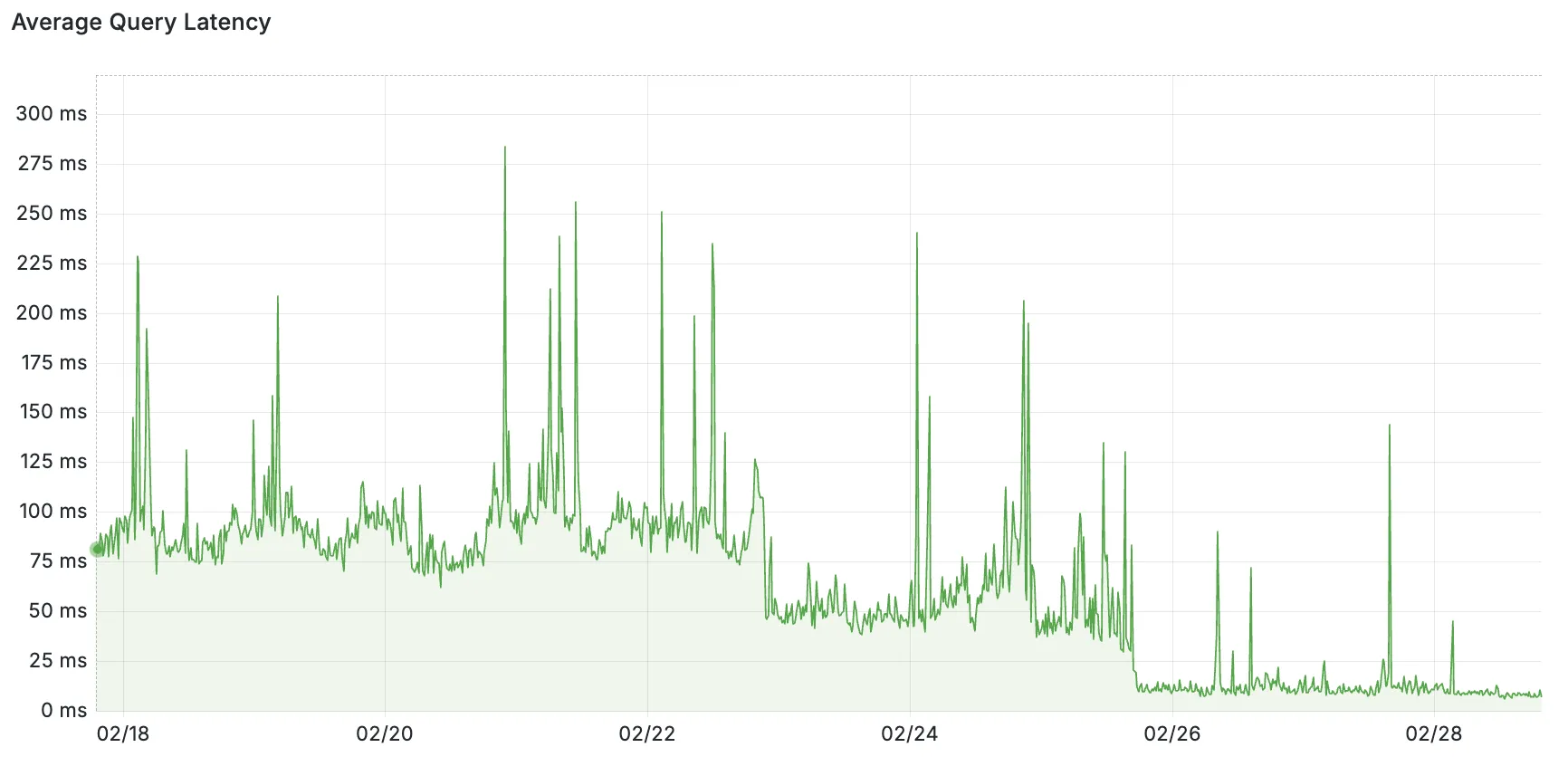
By improving placement of Hyperdrive database connection pools, Workers' Smart Placement is now more effective when used with Hyperdrive, ensuring that your Worker can be placed as close to your database as possible.
With this update, Hyperdrive also uses Cloudflare's standard IP address ranges ↗ to connect to your database. This enables you to configure the firewall policies (IP access control lists) of your database to only allow access from Cloudflare and Hyperdrive.
Refer to documentation on how Hyperdrive makes connecting to regional databases from Cloudflare Workers fast.
This improvement is enabled on all Hyperdrive configurations.
Added new records to the leaked credentials database. The record sources are: Have I Been Pwned (HIBP) database, RockYou 2024 dataset, and another third-party database.
We’ve streamlined the Logpush setup process by integrating R2 bucket creation directly into the Logpush workflow!
Now, you no longer need to navigate multiple pages to manually create an R2 bucket or copy credentials. With this update, you can seamlessly configure a Logpush job to R2 in just one click, reducing friction and making setup faster and easier.
This enhancement makes it easier for customers to adopt Logpush and R2.
For more details refer to our Logs documentation.
You can now use bucket locks to set retention policies on your R2 buckets (or specific prefixes within your buckets) for a specified period — or indefinitely. This can help ensure compliance by protecting important data from accidental or malicious deletion.
Locks give you a few ways to ensure your objects are retained (not deleted or overwritten). You can:
- Lock objects for a specific duration, for example 90 days.
- Lock objects until a certain date, for example January 1, 2030.
- Lock objects indefinitely, until the lock is explicitly removed.
Buckets can have up to 1,000 bucket lock rules. Each rule specifies which objects it covers (via prefix) and how long those objects must remain retained.
Here are a couple of examples showing how you can configure bucket lock rules using Wrangler:
Terminal window npx wrangler r2 bucket lock add <bucket> --name 180-days-all --retention-days 180Terminal window npx wrangler r2 bucket lock add <bucket> --name indefinite-logs --prefix logs/ --retention-indefiniteFor more information on bucket locks and how to set retention policies for objects in your R2 buckets, refer to our documentation.
Today, we are thrilled to announce Media Transformations, a new service that brings the magic of Image Transformations to short-form video files, wherever they are stored!
For customers with a huge volume of short video — generative AI output, e-commerce product videos, social media clips, or short marketing content — uploading those assets to Stream is not always practical. Sometimes, the greatest friction to getting started was the thought of all that migrating. Customers want a simpler solution that retains their current storage strategy to deliver small, optimized MP4 files. Now you can do that with Media Transformations.
To transform a video or image, enable transformations for your zone, then make a simple request with a specially formatted URL. The result is an MP4 that can be used in an HTML video element without a player library. If your zone already has Image Transformations enabled, then it is ready to optimize videos with Media Transformations, too.
URL format https://example.com/cdn-cgi/media/<OPTIONS>/<SOURCE-VIDEO>For example, we have a short video of the mobile in Austin's office. The original is nearly 30 megabytes and wider than necessary for this layout. Consider a simple width adjustment:
Example URL https://example.com/cdn-cgi/media/width=640/<SOURCE-VIDEO>https://developers.cloudflare.com/cdn-cgi/media/width=640/https://pub-d9fcbc1abcd244c1821f38b99017347f.r2.dev/aus-mobile.mp4The result is less than 3 megabytes, properly sized, and delivered dynamically so that customers do not have to manage the creation and storage of these transformed assets.
For more information, learn about Transforming Videos.
We're excited to announce that new logging capabilities for Remote Browser Isolation (RBI) through Logpush are available in Beta starting today!
With these enhanced logs, administrators can gain visibility into end user behavior in the remote browser and track blocked data extraction attempts, along with the websites that triggered them, in an isolated session.
{"AccountID": "$ACCOUNT_ID","Decision": "block","DomainName": "www.example.com","Timestamp": "2025-02-27T23:15:06Z","Type": "copy","UserID": "$USER_ID"}User Actions available:
- Copy & Paste
- Downloads & Uploads
- Printing
Learn more about how to get started with Logpush in our documentation.
Access for SaaS applications now include more configuration options to support a wider array of SaaS applications.
SAML and OIDC Field Additions
OIDC apps now include:
- Group Filtering via RegEx
- OIDC Claim mapping from an IdP
- OIDC token lifetime control
- Advanced OIDC auth flows including hybrid and implicit flows

SAML apps now include improved SAML attribute mapping from an IdP.

SAML transformations
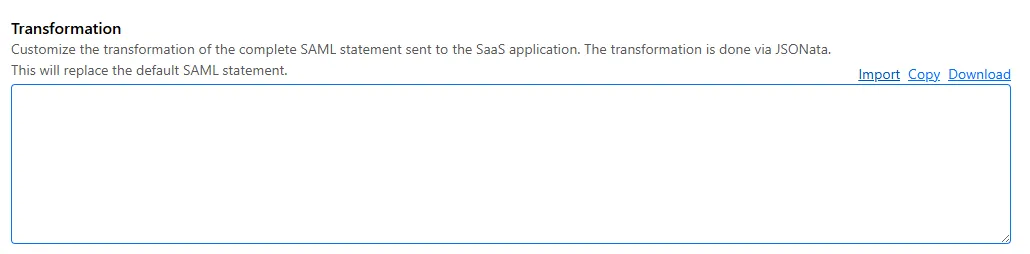
SAML identities sent to Access applications can be fully customized using JSONata expressions. This allows admins to configure the precise identity SAML statement sent to a SaaS application.
Ruleset Rule ID Legacy Rule ID Description Previous Action New Action Comments Cloudflare Managed Ruleset 100721 Ivanti - Remote Code Execution - CVE:CVE-2024-13159, CVE:CVE-2024-13160, CVE:CVE-2024-13161
Log Block This is a New Detection Cloudflare Managed Ruleset 100596 Citrix Content Collaboration ShareFile - Remote Code Execution - CVE:CVE-2023-24489
N/A Block
You can now send detection logs to an endpoint of your choice with Cloudflare Logpush.
Filter logs matching specific criteria you have set and select from over 25 fields you want to send. When creating a new Logpush job, remember to select Email security alerts as the dataset.
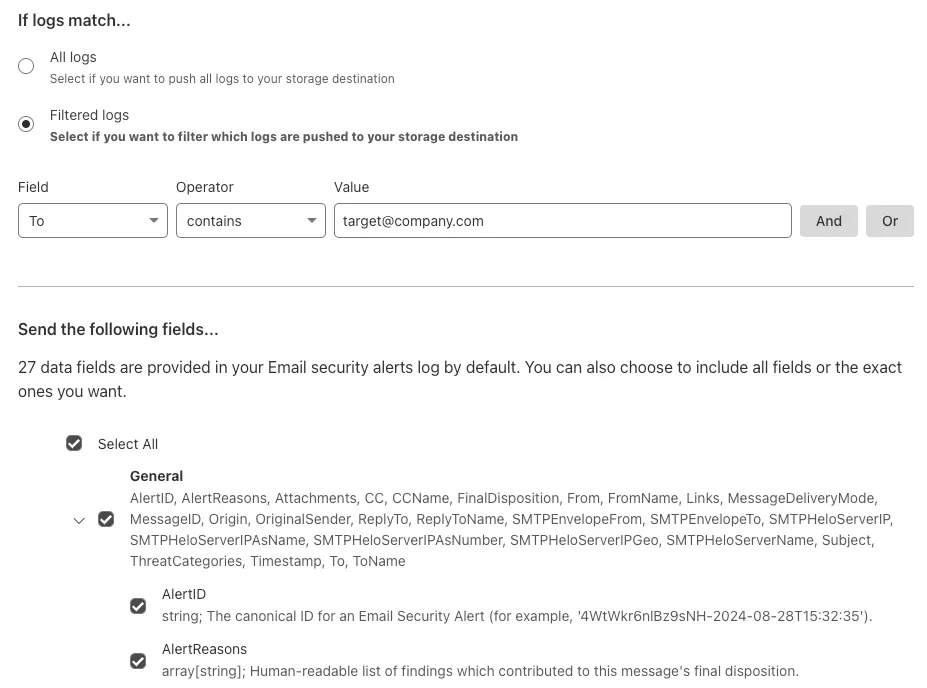
For more information, refer to Enable detection logs.
This feature is available across these Email security packages:
- Enterprise
- Enterprise + PhishGuard
We've released a release candidate of the next major version of Wrangler, the CLI for Cloudflare Workers —
wrangler@4.0.0-rc.0.You can run the following command to install it and be one of the first to try it out:
npm i wrangler@v4-rcyarn add wrangler@v4-rcpnpm add wrangler@v4-rcbun add wrangler@v4-rcUnlike previous major versions of Wrangler, which were foundational rewrites ↗ and rearchitectures ↗ — Version 4 of Wrangler includes a much smaller set of changes. If you use Wrangler today, your workflow is very unlikely to change. Before we release Wrangler v4 and advance past the release candidate stage, we'll share a detailed migration guide in the Workers developer docs. But for the vast majority of cases, you won't need to do anything to migrate — things will just work as they do today. We are sharing this release candidate in advance of the official release of v4, so that you can try it out early and share feedback.
Version 4 of Wrangler updates the version of esbuild ↗ that Wrangler uses internally, allowing you to use modern JavaScript language features, including:
The
usingkeyword from the Explicit Resource Management standard makes it easier to work with the JavaScript-native RPC system built into Workers. This means that when you obtain a stub, you can ensure that it is automatically disposed when you exit scope it was created in:JavaScript function sendEmail(id, message) {using user = await env.USER_SERVICE.findUser(id);await user.sendEmail(message);// user[Symbol.dispose]() is implicitly called at the end of the scope.}Import attributes ↗ allow you to denote the type or other attributes of the module that your code imports. For example, you can import a JSON module, using the following syntax:
JavaScript import data from "./data.json" with { type: "json" };All commands that access resources (for example,
wrangler kv,wrangler r2,wrangler d1) now access local datastores by default, ensuring consistent behavior.Moving forward, the active, maintenance, and current versions of Node.js ↗ will be officially supported by Wrangler. This means the minimum officially supported version of Node.js you must have installed for Wrangler v4 will be Node.js v18 or later. This policy mirrors how many other packages and CLIs support older versions of Node.js, and ensures that as long as you are using a version of Node.js that the Node.js project itself supports, this will be supported by Wrangler as well.
All previously deprecated features in Wrangler v2 ↗ and in Wrangler v3 ↗ have now been removed. Additionally, the following features that were deprecated during the Wrangler v3 release have been removed:
- Legacy Assets (using
wrangler dev/deploy --legacy-assetsor thelegacy_assetsconfig file property). Instead, we recommend you migrate to Workers assets ↗. - Legacy Node.js compatibility (using
wrangler dev/deploy --node-compator thenode_compatconfig file property). Instead, use thenodejs_compatcompatibility flag ↗. This includes the functionality from legacynode_compatpolyfills and natively implemented Node.js APIs. wrangler version. Instead, usewrangler --versionto check the current version of Wrangler.getBindingsProxy()(viaimport { getBindingsProxy } from "wrangler"). Instead, use thegetPlatformProxy()API ↗, which takes exactly the same arguments.usage_model. This no longer has any effect, after the rollout of Workers Standard Pricing ↗.
We'd love your feedback! If you find a bug or hit a roadblock when upgrading to Wrangler v4, open an issue on the
cloudflare/workers-sdkrepository on GitHub ↗.- Legacy Assets (using
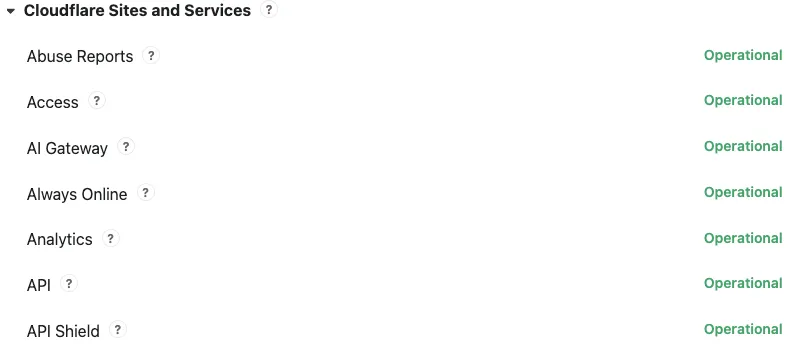
Concerns about performance for Email security or Area 1? You can now check the operational status of both on the Cloudflare Status page ↗.
For Email security, look under Cloudflare Sites and Services.
- Dashboard is the dashboard for Cloudflare, including Email security
- Email security (Zero Trust) is the processing of email
- API are the Cloudflare endpoints, including the ones for Email security
For Area 1, under Cloudflare Sites and Services:
- Area 1 - Dash is the dashboard for Cloudflare, including Email security
- Email security (Area1) is the processing of email
- Area 1 - API are the Area 1 endpoints
This feature is available across these Email security packages:
- Advantage
- Enterprise
- Enterprise + PhishGuard
We've released a new REST API for Browser Rendering in open beta, making interacting with browsers easier than ever. This new API provides endpoints for common browser actions, with more to be added in the future.
With the REST API you can:
- Capture screenshots – Use
/screenshotto take a screenshot of a webpage from provided URL or HTML. - Generate PDFs – Use
/pdfto convert web pages into PDFs. - Extract HTML content – Use
/contentto retrieve the full HTML from a page. Snapshot (HTML + Screenshot) – Use/snapshotto capture both the page's HTML and a screenshot in one request - Scrape Web Elements – Use
/scrapeto extract specific elements from a page.
For example, to capture a screenshot:
Screenshot example curl -X POST 'https://api.cloudflare.com/client/v4/accounts/<accountId>/browser-rendering/screenshot' \-H 'Authorization: Bearer <apiToken>' \-H 'Content-Type: application/json' \-d '{"html": "Hello World!","screenshotOptions": {"type": "webp","omitBackground": true}}' \--output "screenshot.webp"Learn more in our documentation.
- Capture screenshots – Use
Radar has expanded its DNS insights, providing visibility into aggregated traffic and usage trends observed by our 1.1.1.1 DNS resolver. In addition to global, location, and ASN traffic trends, we are also providing perspectives on protocol usage, query/response characteristics, and DNSSEC usage.
Previously limited to the
toplocations and ASes endpoints, we have now introduced the following endpoints:/dns/timeseries: Retrieves DNS query volume over time./dns/summary/{dimension}: Retrieves summaries of DNS query distribution across ten different dimensions./dns/timeseries_groups/{dimension}: Retrieves timeseries data for DNS query distribution across ten different dimensions.
For the
summaryandtimeseries_groupsendpoints, the following dimensions are available, displaying the distribution of DNS queries based on:cache_hit: Cache status (hit vs. miss).dnsssec: DNSSEC support status (secure, insecure, invalid or other).dnsssec_aware: DNSSEC client awareness (aware vs. not-aware).dnsssec_e2e: End-to-end security (secure vs. insecure).ip_version: IP version (IPv4 vs. IPv6).matching_answer: Matching answer status (match vs. no-match).protocol: Transport protocol (UDP, TLS, HTTPS or TCP).query_type: Query type (A,AAAA,PTR, etc.).response_code: Response code (NOERROR,NXDOMAIN,REFUSED, etc.).response_ttl: Response TTL.
Learn more about the new Radar DNS insights in our blog post ↗, and check out the new Radar page ↗.
AI Gateway now includes Guardrails, to help you monitor your AI apps for harmful or inappropriate content and deploy safely.
Within the AI Gateway settings, you can configure:
- Guardrails: Enable or disable content moderation as needed.
- Evaluation scope: Select whether to moderate user prompts, model responses, or both.
- Hazard categories: Specify which categories to monitor and determine whether detected inappropriate content should be blocked or flagged.

Learn more in the blog ↗ or our documentation.
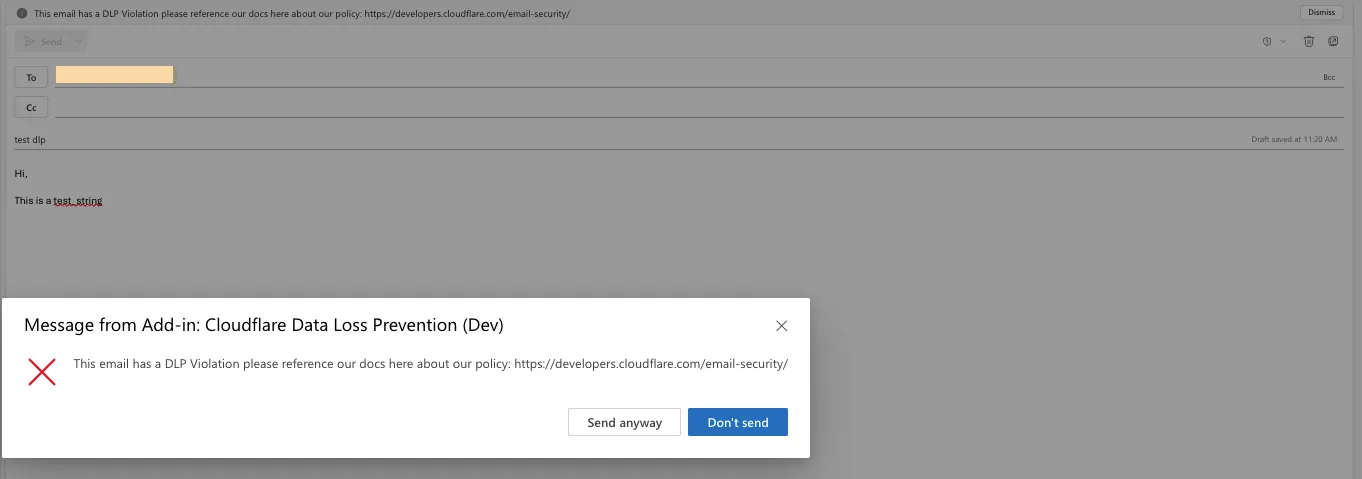
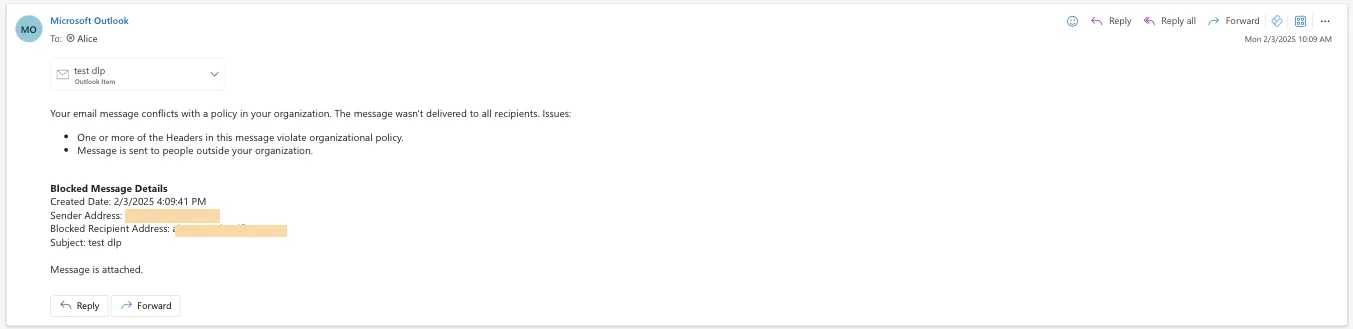
Cloudflare Email security customers who have Microsoft 365 environments can quickly deploy an Email DLP (Data Loss Prevention) solution for free.
Simply deploy our add-in, create a DLP policy in Cloudflare, and configure Outlook to trigger behaviors like displaying a banner, alerting end users before sending, or preventing delivery entirely.
Refer to Outbound Data Loss Prevention to learn more about this feature.
In GUI alert:

Alert before sending:
Prevent delivery:
This feature is available across these Email security packages:
- Enterprise
- Enterprise + PhishGuard
We've released the Agents SDK ↗, a package and set of tools that help you build and ship AI Agents.
You can get up and running with a chat-based AI Agent ↗ (and deploy it to Workers) that uses the Agents SDK, tool calling, and state syncing with a React-based front-end by running the following command:
Terminal window npm create cloudflare@latest agents-starter -- --template="cloudflare/agents-starter"# open up README.md and follow the instructionsYou can also add an Agent to any existing Workers application by installing the
agentspackage directlyTerminal window npm i agents... and then define your first Agent:
TypeScript import { Agent } from "agents";export class YourAgent extends Agent<Env> {// Build it out// Access state on this.state or query the Agent's database via this.sql// Handle WebSocket events with onConnect and onMessage// Run tasks on a schedule with this.schedule// Call AI models// ... and/or call other Agents.}Head over to the Agents documentation to learn more about the Agents SDK, the SDK APIs, as well as how to test and deploying agents to production.
Workers AI now supports structured JSON outputs with JSON mode, which allows you to request a structured output response when interacting with AI models.
This makes it much easier to retrieve structured data from your AI models, and avoids the (error prone!) need to parse large unstructured text responses to extract your data.
JSON mode in Workers AI is compatible with the OpenAI SDK's structured outputs ↗
response_formatAPI, which can be used directly in a Worker:JavaScript import { OpenAI } from "openai";// Define your JSON schema for a calendar eventconst CalendarEventSchema = {type: "object",properties: {name: { type: "string" },date: { type: "string" },participants: { type: "array", items: { type: "string" } },},required: ["name", "date", "participants"],};export default {async fetch(request, env) {const client = new OpenAI({apiKey: env.OPENAI_API_KEY,// Optional: use AI Gateway to bring logs, evals & caching to your AI requests// https://developers.cloudflare.com/ai-gateway/usage/providers/openai/// baseUrl: "https://gateway.ai.cloudflare.com/v1/{account_id}/{gateway_id}/openai"});const response = await client.chat.completions.create({model: "gpt-4o-2024-08-06",messages: [{ role: "system", content: "Extract the event information." },{role: "user",content: "Alice and Bob are going to a science fair on Friday.",},],// Use the `response_format` option to request a structured JSON outputresponse_format: {// Set json_schema and provide ra schema, or json_object and parse it yourselftype: "json_schema",schema: CalendarEventSchema, // provide a schema},});// This will be of type CalendarEventSchemaconst event = response.choices[0].message.parsed;return Response.json({calendar_event: event,});},};TypeScript import { OpenAI } from "openai";interface Env {OPENAI_API_KEY: string;}// Define your JSON schema for a calendar eventconst CalendarEventSchema = {type: "object",properties: {name: { type: "string" },date: { type: "string" },participants: { type: "array", items: { type: "string" } },},required: ["name", "date", "participants"],};export default {async fetch(request: Request, env: Env) {const client = new OpenAI({apiKey: env.OPENAI_API_KEY,// Optional: use AI Gateway to bring logs, evals & caching to your AI requests// https://developers.cloudflare.com/ai-gateway/usage/providers/openai/// baseUrl: "https://gateway.ai.cloudflare.com/v1/{account_id}/{gateway_id}/openai"});const response = await client.chat.completions.create({model: "gpt-4o-2024-08-06",messages: [{ role: "system", content: "Extract the event information." },{role: "user",content: "Alice and Bob are going to a science fair on Friday.",},],// Use the `response_format` option to request a structured JSON outputresponse_format: {// Set json_schema and provide ra schema, or json_object and parse it yourselftype: "json_schema",schema: CalendarEventSchema, // provide a schema},});// This will be of type CalendarEventSchemaconst event = response.choices[0].message.parsed;return Response.json({calendar_event: event,});},};To learn more about JSON mode and structured outputs, visit the Workers AI documentation.
Workflows now supports up to 4,500 concurrent (running) instances, up from the previous limit of 100. This limit will continue to increase during the Workflows open beta. This increase applies to all users on the Workers Paid plan, and takes effect immediately.
Review the Workflows limits documentation and/or dive into the get started guide to start building on Workflows.
You can now interact with the Images API directly in your Worker.
This allows more fine-grained control over transformation request flows and cache behavior. For example, you can resize, manipulate, and overlay images without requiring them to be accessible through a URL.
The Images binding can be configured in the Cloudflare dashboard for your Worker or in the Wrangler configuration file in your project's directory:
JSONC {"images": {"binding": "IMAGES", // i.e. available in your Worker on env.IMAGES},}TOML [images]binding = "IMAGES"Within your Worker code, you can interact with this binding by using
env.IMAGES.Here's how you can rotate, resize, and blur an image, then output the image as AVIF:
TypeScript const info = await env.IMAGES.info(stream);// stream contains a valid image, and width/height is available on the info objectconst response = (await env.IMAGES.input(stream).transform({ rotate: 90 }).transform({ width: 128 }).transform({ blur: 20 }).output({ format: "image/avif" })).response();return response;For more information, refer to Images Bindings.
Super Slurper can now migrate data from any S3-compatible object storage provider to Cloudflare R2. This includes transfers from services like MinIO, Wasabi, Backblaze B2, and DigitalOcean Spaces.
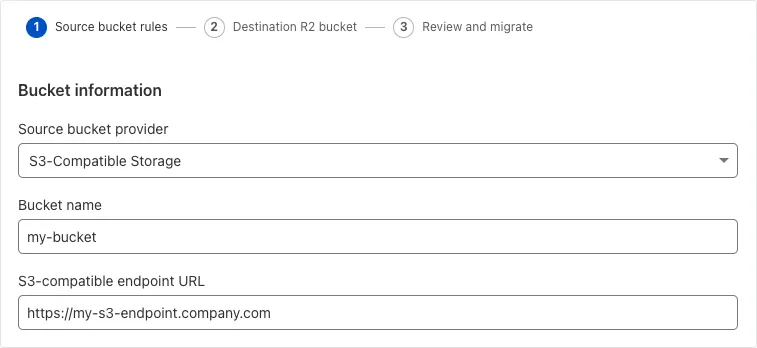
For more information on Super Slurper and how to migrate data from your existing S3-compatible storage buckets to R2, refer to our documentation.
Ruleset Rule ID Legacy Rule ID Description Previous Action New Action Comments Cloudflare Managed Ruleset 100718A SonicWall SSLVPN 2 - Auth Bypass - CVE:CVE-2024-53704 Log Block This is a New Detection Cloudflare Managed Ruleset 100720 Palo Alto Networks - Auth Bypass - CVE:CVE-2025-0108 Log Block This is a New Detection
We've updated the Workers AI text generation models to include context windows and limits definitions and changed our APIs to estimate and validate the number of tokens in the input prompt, not the number of characters.
This update allows developers to use larger context windows when interacting with Workers AI models, which can lead to better and more accurate results.
Our catalog page provides more information about each model's supported context window.
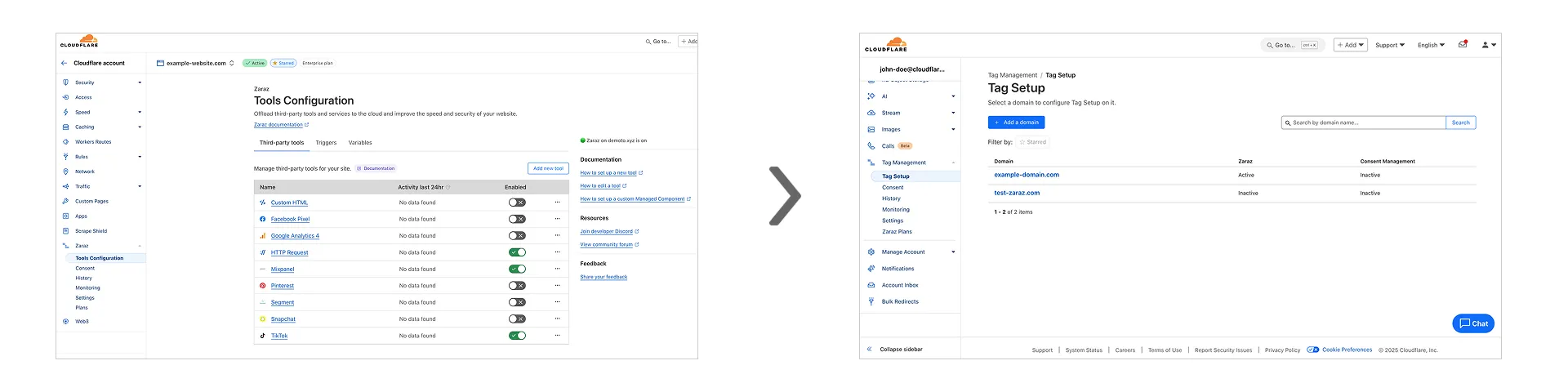
Previously, you could only configure Zaraz by going to each individual zone under your Cloudflare account. Now, if you’d like to get started with Zaraz or manage your existing configuration, you can navigate to the Tag Management ↗ section on the Cloudflare dashboard – this will make it easier to compare and configure the same settings across multiple zones.
These changes will not alter any existing configuration or entitlements for zones you already have Zaraz enabled on. If you’d like to edit existing configurations, you can go to the Tag Setup ↗ section of the dashboard, and select the zone you'd like to edit.
Workers for Platforms ↗ is an architecture wherein a centralized dispatch Worker processes incoming requests and routes them to isolated sub-Workers, called User Workers.
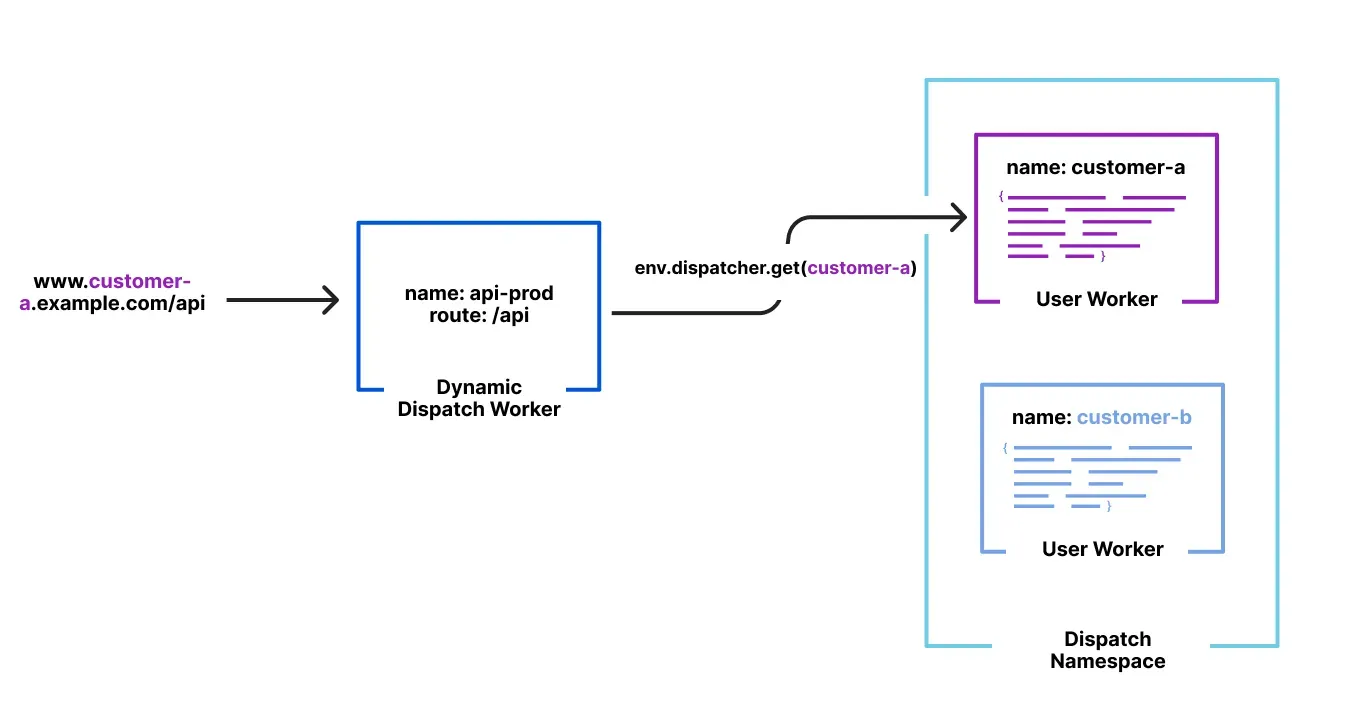
Previously, when a new User Worker was uploaded, there was a short delay before it became available for dispatch. This meant that even though an API request could return a 200 OK response, the script might not yet be ready to handle requests, causing unexpected failures for platforms that immediately dispatch to new Workers.
With this update, first-time uploads of User Workers are now deployed synchronously. A 200 OK response guarantees the script is fully provisioned and ready to handle traffic immediately, ensuring more predictable deployments and reducing errors.