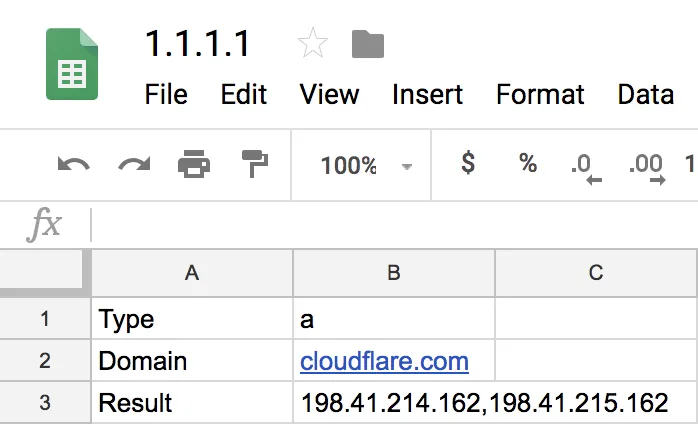
DNS in Google Sheets
This tutorial creates a custom Google Sheets function that queries Cloudflare's 1.1.1.1 DNS resolver using DNS over HTTPS (DoH) — a protocol that encrypts DNS lookups over HTTPS. Once set up, you can type a formula like =NSLookup("A", "example.com") in any cell to retrieve DNS records without leaving your spreadsheet. This is useful for bulk domain audits, migration planning, or monitoring DNS changes across many domains at once.
To get started, open your Google Sheet and create a custom function in Google Apps Script ↗ with the following code:
function NSLookup(type, domain, useCache = false, minCacheTTL = 30) {  // --- Parameter validation ---  if (typeof type == "undefined") {    throw new Error("Missing parameter 1 dns type");  }
  if (typeof domain == "undefined") {    throw new Error("Missing parameter 2 domain name");  }
  if (typeof useCache != "boolean") {    throw new Error("Only boolean values allowed in 3 use cache");  }
  if (typeof minCacheTTL != "number") {    throw new Error("Only numeric values allowed in 4 min cache ttl");  }
  type = type.toUpperCase();  domain = domain.toLowerCase();
  // --- Optional caching layer (uses Google Apps Script CacheService) ---  let cache = null;  if (useCache) {    // Cache key and hash    cacheKey = domain + "@" + type;    cacheHash = Utilities.base64Encode(cacheKey);    cacheBinKey = "nslookup-result-" + cacheHash;
    cache = CacheService.getScriptCache();    const cachedResult = cache.get(cacheBinKey);    if (cachedResult != null) {      return cachedResult;    }  }
  // --- DNS-over-HTTPS query to Cloudflare's 1.1.1.1 resolver ---  const url =    "https://cloudflare-dns.com/dns-query?name=" +    encodeURIComponent(domain) +    "&type=" +    encodeURIComponent(type);  const options = {    muteHttpExceptions: true,    headers: {      accept: "application/dns-json",    },  };
  const result = UrlFetchApp.fetch(url, options);  const rc = result.getResponseCode();  const resultText = result.getContentText();
  if (rc !== 200) {    throw new Error(rc);  }
  // --- Standard DNS response codes ---  const errors = [    { name: "NoError", description: "No Error" }, // 0    { name: "FormErr", description: "Format Error" }, // 1    { name: "ServFail", description: "Server Failure" }, // 2    { name: "NXDomain", description: "Non-Existent Domain" }, // 3    { name: "NotImp", description: "Not Implemented" }, // 4    { name: "Refused", description: "Query Refused" }, // 5    { name: "YXDomain", description: "Name Exists when it should not" }, // 6    { name: "YXRRSet", description: "RR Set Exists when it should not" }, // 7    { name: "NXRRSet", description: "RR Set that should exist does not" }, // 8    { name: "NotAuth", description: "Not Authorized" }, // 9  ];
  const response = JSON.parse(resultText);
  if (response.Status !== 0) {    return errors[response.Status].name;  }
  // --- Extract answer records and determine cache TTL ---  const outputData = [];  let cacheTTL = 0;
  for (const i in response.Answer) {    outputData.push(response.Answer[i].data);    const ttl = response.Answer[i].TTL;    cacheTTL = Math.min(cacheTTL || ttl, ttl);  }
  const outputString = outputData.join(",");
  if (useCache) {    cache.put(cacheBinKey, outputString, Math.max(cacheTTL, minCacheTTL));  }
return outputString;}When you call the NSLookup function with a record type and a domain, the cell displays the corresponding DNS record value — the data (such as an IP address) that DNS returns for that domain and record type.
The full function signature is:
=NSLookup(type, domain, useCache, minCacheTTL)
| Parameter | Required | Default | Description |
|---|---|---|---|
type | Yes | — | DNS record type to query (for example, A, AAAA, MX). |
domain | Yes | — | The domain name to look up. |
useCache | No | false | Set to true to cache results using Google Apps Script's CacheService, which reduces repeated DNS lookups in large spreadsheets. |
minCacheTTL | No | 30 | Minimum cache duration in seconds. The actual TTL is the higher of this value or the TTL returned by the DNS response. |
Supported DNS record types
AAAAACAACNAMEDSDNSKEYMXNSNSECNSEC3RRSIGSOATXT
For example, if cell B1 contains A (the record type) and B2 contains example.com (the domain), typing the following formula in another cell:
=NSLookup(B1, B2)Depending on your regional settings, you may need to use a semicolon as the argument separator:
=NSLookup(B1; B2)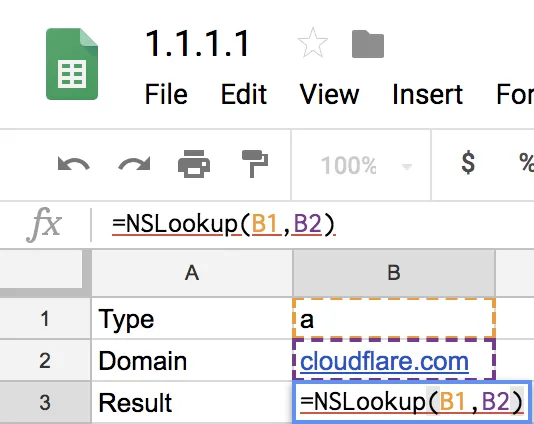
Returns the A record for that domain:
198.41.214.162, 198.41.215.162